---
title: How Do I Check if My Referral Link was Sent Successfully?
description: In this article, users will learn how to verify that their referral link was successfully sent to their referred candidate.
---
[Skip to content](https://support.erinapp.com/knowledge/faqs/referral-successful#main-content)
English
Show submenu for translations
[Contact us](https://support.erinapp.com/knowledge/kb-tickets/new?hsLang=en) [Customer portal](https://support.erinapp.com/tickets-view?hsLang=en)
![erinlogo.png\]](https://support.erinapp.com/hs-fs/hubfs/erinlogo.png?height=40&name=erinlogo.png)
Open main navigation
Close main navigation
- English
Show submenu for translations
- [Contact us](https://support.erinapp.com/knowledge/kb-tickets/new)
- [Customer portal](https://support.erinapp.com/tickets-view)
- Log in to ERIN
Log in to ERIN
How can we help you?
- There are no suggestions because the search field is empty.
1. [Support Center](https://support.erinapp.com/knowledge?hsLang=en)
2. [FAQs](https://support.erinapp.com/knowledge/faqs?hsLang=en)
3. [Referral](https://support.erinapp.com/knowledge/faqs?hsLang=en#referral)
# How Do I Check if My Referral Link was Sent Successfully?
### Overview
In this article, users will learn how to verify that their referral link was successfully sent to their referred candidate.
### 1. Verify Candidate's Information
#### 1.1. Go To My Referrals
Select "**My Referrals**" from the "**Referrals**" dropdown on the menu to the left (Fig. 1a).
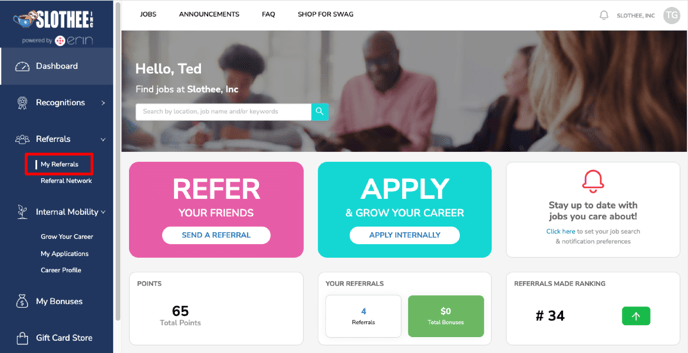Figure 1a
#### 1.2. Click on Candidate's Name
Next, select your referred candidate's name from the "**My Referrals**" dashboard (Fig. 1b). If you don't see your candidate's name, submit a new referral for the candidate to resolve this issue.
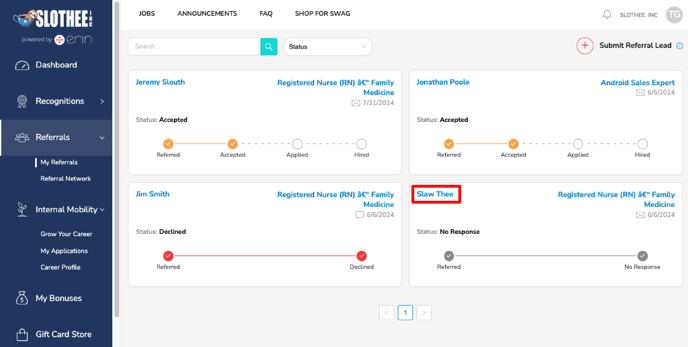Figure 1b
#### 1.3. Verify Contact Information
Now, check that your candidate's email or phone number was entered correctly (Fig. 1c). If either field was not entered correctly, submit a new referral for the candidate using the correct information to resolve this issue.
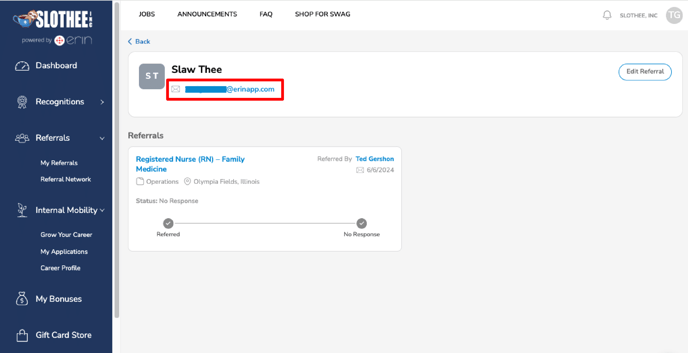Figure 1c
### 2. Check Spam or Junk Folders
If the contact information you submitted for your candidate was correct, we recommend the candidate check their email's Spam or Junk folders.
If their text messaging tool has a spam filter, then they should also check the Spam filters in their messaging app.
### 3. Additional Assistance
If your referral candidate is still unable to locate their referral message, **contact ERIN Support** for assistance in resending a referral.
#### 3.1. ERIN Browser **Support**
Use the **chat bubble** in the bottom-right of the screen in your browser to request a review of your referral (Fig. 3a).
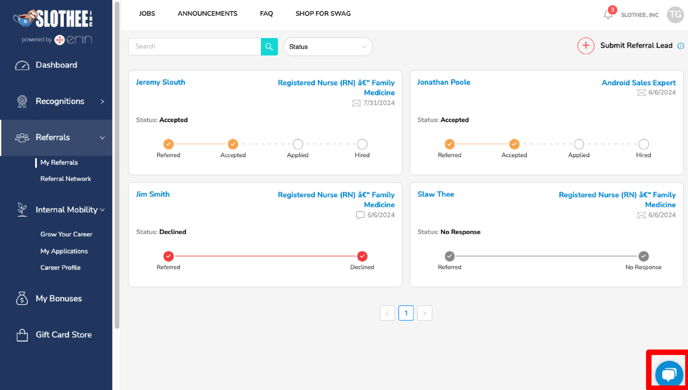Figure 3a
#### 3.2. ERIN Mobile App **Support**
Use the "**Support**" tab in the mobile app to request a review of your referral (Fig. 3b).
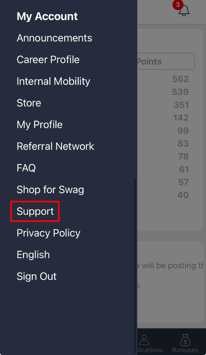
Figure 3b
- [FAQs](https://support.erinapp.com/knowledge/faqs?hsLang=en#main-content)
- [Referral](https://support.erinapp.com/knowledge/faqs?hsLang=en#referral)
- [Bonus](https://support.erinapp.com/knowledge/faqs?hsLang=en#bonus)
- [Employee Features](https://support.erinapp.com/knowledge/employee-features?hsLang=en#main-content)
- [Set Up](https://support.erinapp.com/knowledge/employee-features?hsLang=en#set-up)
- [My Referrals](https://support.erinapp.com/knowledge/employee-features?hsLang=en#my-referrals)
- [My Bonuses](https://support.erinapp.com/knowledge/employee-features?hsLang=en#my-bonuses)
- [Admin Features](https://support.erinapp.com/knowledge/admin-features?hsLang=en#main-content)
- [Referrals](https://support.erinapp.com/knowledge/admin-features?hsLang=en#referrals)
- [Notifications](https://support.erinapp.com/knowledge/admin-features?hsLang=en#notifications)
- [Reports](https://support.erinapp.com/knowledge/admin-features?hsLang=en#reports)
- [Integrations](https://support.erinapp.com/knowledge/integrations?hsLang=en)
- [Security & Compliance](https://support.erinapp.com/knowledge/security-compliance?hsLang=en)
- [Troubleshooting](https://support.erinapp.com/knowledge/troubleshooting?hsLang=en#main-content)
- [Set Up](https://support.erinapp.com/knowledge/troubleshooting?hsLang=en#set-up)
- [Referral FAQs](https://support.erinapp.com/knowledge/troubleshooting?hsLang=en#referral-faqs)
- [Bonus FAQs](https://support.erinapp.com/knowledge/troubleshooting?hsLang=en#bonus-faqs)
- [Informational](https://support.erinapp.com/knowledge/informational?hsLang=en#main-content)
- [My Referrals](https://support.erinapp.com/knowledge/informational?hsLang=en#my-referrals)
- [My Bonuses](https://support.erinapp.com/knowledge/informational?hsLang=en#my-bonuses)
- [Referrals](https://support.erinapp.com/knowledge/informational?hsLang=en#referrals)
- [Bonus FAQs](https://support.erinapp.com/knowledge/informational?hsLang=en#bonus-faqs)
- [Set Up](https://support.erinapp.com/knowledge/informational?hsLang=en#set-up)
- [Steps to Follow](https://support.erinapp.com/knowledge/steps-to-follow?hsLang=en#main-content)
- [My Referrals](https://support.erinapp.com/knowledge/steps-to-follow?hsLang=en#my-referrals)
- [Set Up](https://support.erinapp.com/knowledge/steps-to-follow?hsLang=en#set-up)
- [Bonus FAQs](https://support.erinapp.com/knowledge/steps-to-follow?hsLang=en#bonus-faqs)
- [My Points](https://support.erinapp.com/knowledge/steps-to-follow?hsLang=en#my-points)
- [Internal Mobility](https://support.erinapp.com/knowledge/steps-to-follow?hsLang=en#internal-mobility)
[](http://www.erinapp.com)
© 2026 ERIN Technologies, Inc. All Rights Reserved.
Copyright © 2026, ERIN Technologies Inc.