---
title: Learn about the Message Center
description: In this article, users will learn the key features of ERIN's Message Center tool used to notify employees or candidates of a new job posting.
---
[Skip to content](https://support.erinapp.com/migration/knowledge/admin/message-center-about#main-content)
English
Show submenu for translations
[Contact us](https://support.erinapp.com/migration/knowledge/kb-tickets/new?hsLang=en) [Customer portal](https://support.erinapp.com/tickets-view?hsLang=en) [Sign in](https://support.erinapp.com/_hcms/mem/login?redirect_url=https%3A%2F%2Fsupport.erinapp.com%2Fmigration%2Fknowledge%2Fadmin%2Fmessage-center-about&hsLang=en)
![erinlogo.png\]](https://support.erinapp.com/hs-fs/hubfs/erinlogo.png?height=40&name=erinlogo.png)
- [Default HubSpot Blog](https://5037052.hs-sites.com/blog)
Open main navigation
Close main navigation
- [Default HubSpot Blog](https://5037052.hs-sites.com/blog)
- English
Show submenu for translations
- [Contact us](https://support.erinapp.com/migration/knowledge/kb-tickets/new)
- [Customer portal](https://support.erinapp.com/tickets-view)
- [Sign in](https://support.erinapp.com/_hcms/mem/login?redirect_url=https%3A%2F%2Fsupport.erinapp.com%2Fmigration%2Fknowledge%2Fadmin%2Fmessage-center-about)
- Log in to ERIN
Log in to ERIN
How can we help you?
- There are no suggestions because the search field is empty.
1. [Support Center](https://support.erinapp.com/migration/knowledge?hsLang=en)
2. [Informational](https://support.erinapp.com/migration/knowledge/informational?hsLang=en)
- [FAQs](https://support.erinapp.com/migration/knowledge/faqs?hsLang=en#main-content)
- [Referral](https://support.erinapp.com/migration/knowledge/faqs?hsLang=en#referral)
- [Bonus](https://support.erinapp.com/migration/knowledge/faqs?hsLang=en#bonus)
- [Employee Features](https://support.erinapp.com/migration/knowledge/employee-features?hsLang=en#main-content)
- [Set Up](https://support.erinapp.com/migration/knowledge/employee-features?hsLang=en#set-up)
- [My Referrals](https://support.erinapp.com/migration/knowledge/employee-features?hsLang=en#my-referrals)
- [My Bonuses](https://support.erinapp.com/migration/knowledge/employee-features?hsLang=en#my-bonuses)
- [Admin Features](https://support.erinapp.com/migration/knowledge/admin-features?hsLang=en#main-content)
- [Referrals](https://support.erinapp.com/migration/knowledge/admin-features?hsLang=en#referrals)
- [Notifications](https://support.erinapp.com/migration/knowledge/admin-features?hsLang=en#notifications)
- [Reports](https://support.erinapp.com/migration/knowledge/admin-features?hsLang=en#reports)
- [Integrations](https://support.erinapp.com/migration/knowledge/integrations?hsLang=en)
- [Security & Compliance](https://support.erinapp.com/migration/knowledge/security-compliance?hsLang=en)
- [Troubleshooting](https://support.erinapp.com/migration/knowledge/troubleshooting?hsLang=en#main-content)
- [Set Up](https://support.erinapp.com/migration/knowledge/troubleshooting?hsLang=en#set-up)
- [Referral FAQs](https://support.erinapp.com/migration/knowledge/troubleshooting?hsLang=en#referral-faqs)
- [Bonus FAQs](https://support.erinapp.com/migration/knowledge/troubleshooting?hsLang=en#bonus-faqs)
- [Informational](https://support.erinapp.com/migration/knowledge/informational?hsLang=en#main-content)
- [My Referrals](https://support.erinapp.com/migration/knowledge/informational?hsLang=en#my-referrals)
- [My Bonuses](https://support.erinapp.com/migration/knowledge/informational?hsLang=en#my-bonuses)
- [Referrals](https://support.erinapp.com/migration/knowledge/informational?hsLang=en#referrals)
- [Bonus FAQs](https://support.erinapp.com/migration/knowledge/informational?hsLang=en#bonus-faqs)
- [Set Up](https://support.erinapp.com/migration/knowledge/informational?hsLang=en#set-up)
- [Steps to Follow](https://support.erinapp.com/migration/knowledge/steps-to-follow?hsLang=en#main-content)
- [My Referrals](https://support.erinapp.com/migration/knowledge/steps-to-follow?hsLang=en#my-referrals)
- [Set Up](https://support.erinapp.com/migration/knowledge/steps-to-follow?hsLang=en#set-up)
- [Bonus FAQs](https://support.erinapp.com/migration/knowledge/steps-to-follow?hsLang=en#bonus-faqs)
- [My Points](https://support.erinapp.com/migration/knowledge/steps-to-follow?hsLang=en#my-points)
- [Internal Mobility](https://support.erinapp.com/migration/knowledge/steps-to-follow?hsLang=en#internal-mobility)
# Learn about the Message Center
To follow along with this article, you will need:
- Administrator-level access to ERIN
### Overview
In this article, users will learn the key features of ERIN's Message Center tool used to notify employees or candidates of a new job posting.
### 1. Specify Audience
#### 1.1. Message Employees
***1.1.a. * Filter by Department**
Select a specific department to send a message to from the drop down or leave as "all" to send a message to all employees that have claimed an ERIN account (Fig. 1a).
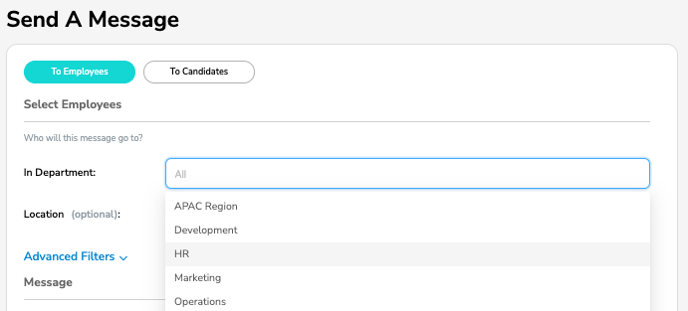
Figure 1a
***1.1.b. * Filter by Location**
Select employees within a certain distance of a specific city, state, or address to send a message to (Fig. 1b).
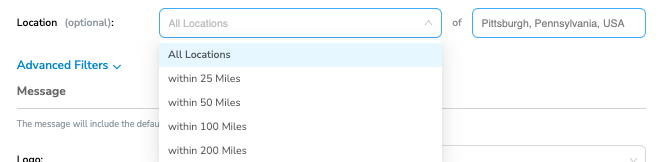Figure 1b
***1.1.c. * Filter by Group or Subcompany Status**
Click the "Advanced Filters" drop down, then select a group or subcompany to from the drop downs (Fig. 1c).
Figure 1c
***1.1.d.* Notify all Employees**
Under "Advanced Filters", select the "Message All Company Employees" checkbox (Fig. 1d). Note that this messages all employees on ERIN, as well as all employees that have not yet claimed an account on ERIN.
***1.1.e. *Notify all Employees that Haven't Claimed an Account**
Under "Advanced Filters", select the "Message All Company Employees that haven't claimed an Account" checkbox (Fig. 1d).
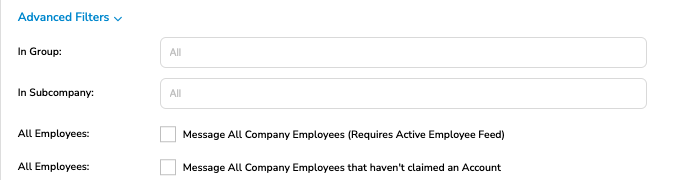
Figure 1d
#### 1.2. Message Candidates
***1.2.a. * Filter by Department**
Select a specific department to send a message to from the drop down, or leave as "all" to send a message to all candidates who have been referred for a position (Fig. 2a).
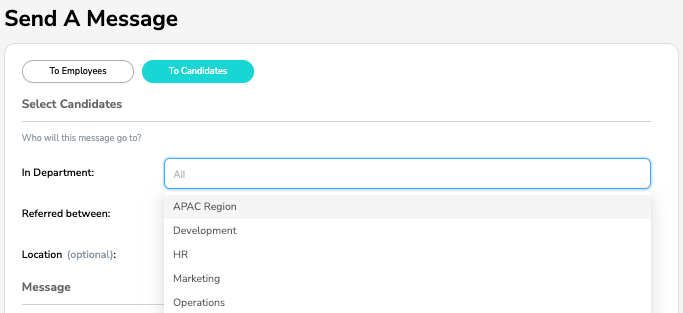Figure 2a
***1.2.b. * Filter by Referred Date**
Select candidates referred within a certain date range to send a message to (Fig. 2b).
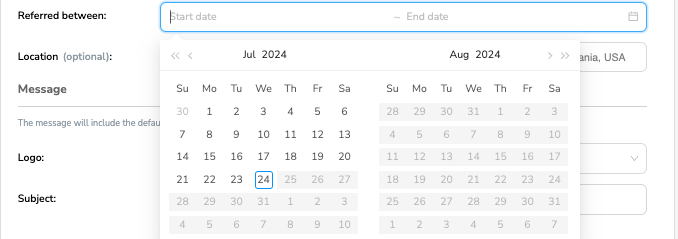Figure 2b
***1.2.c. *Filter by Location**
Select candidates referred within a certain distance of a specific city, state, or address to send a message to (Fig. 2c).
Figure 2c
### 2. Customize Message
#### 2.1. Choose Logo
Select a logo to accompany the message from the drop down of pre-loaded logos (Fig. 2.1).
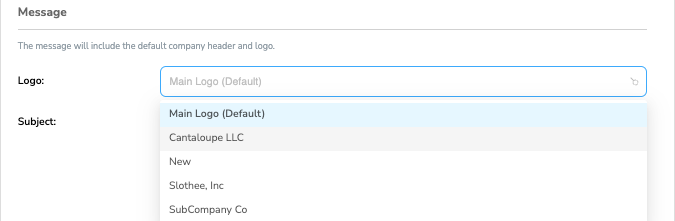Figure 2.1
#### 2.2. Customize Text
***2.2.a. *Subject Line**
Customize the subject line of the message (Fig. 2.2).
***2.2.b.* Body**
Customize the body text of the message using the built-in functionality (Fig. 2.2).
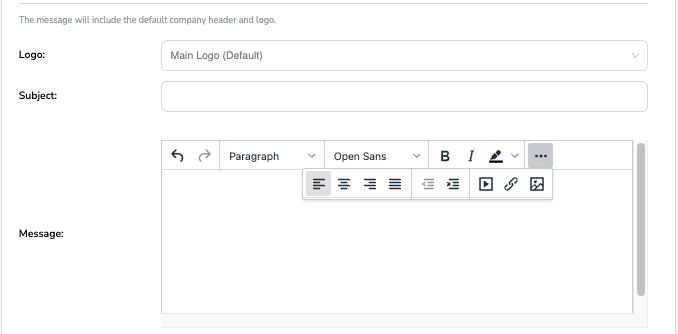Figure 2.2
### 3. Link Jobs or Campaigns in Message
#### 3.1. Jobs
Under "Include Jobs", select jobs from the drop down menu to include in the message (Fig. 3a).
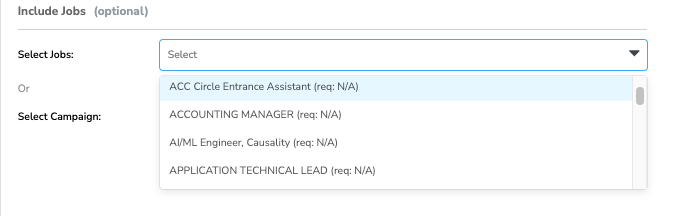Figure 3a
#### 3.2. Campaigns
Under "Include Jobs", select campaigns from the drop down menu to include in the message (Fig. 3b).
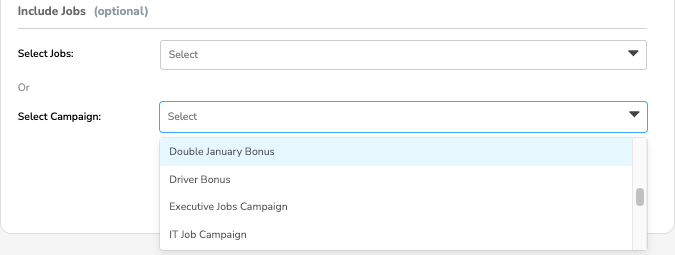Figure 3b
### 4. Send Message
#### 4.1. Send a Test Email
Before sending the message to all intended recipients, click "Send Me A Test Email" and make adjustments as needed (Fig. 4a).
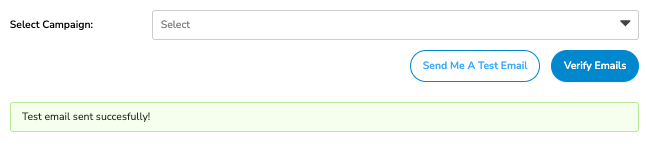Figure 4a
#### 4.2. Verify Recipients
Once ready to send the message, click "Verify Emails". Now, you'll see a message asking "Are you sure you want to proceed?" Click continue (Fig. 4b).
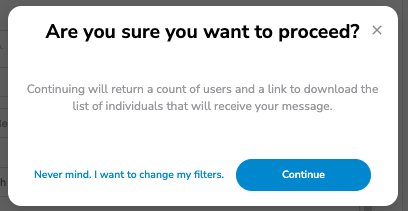
Figure 4b
***4.2.a. *Number of Recipients**
Now, you'll see the "Verify Emails" button has changed to "Email Employees". Here, the number of message recipients is displayed (Fig. 4c).
***4.2.b. *Emails of Recipients**
Under the "Verify Emails" button, you'll see an option to "Download Email CSV" to view the exact email addresses that will receive the message (Fig. 4c).
Figure 4c
#### 4.3. Send Email
Now, once the email is ready to send click "Email Employees".
Next, learn how to strategically use the message center to maximize talent acquisition efforts.
[How to use the Message Center](https://support.erinapp.com/knowledge/how-to-use-the?hs_preview=urAGXqbl-173904462399&hsLang=en)
- [Default HubSpot Blog](https://5037052.hs-sites.com/blog)
[](http://www.erinapp.com)
© 2024 ERIN Technologies, Inc. All Rights Reserved.
Copyright © 2026, ERIN Technologies Inc.